If you want to know how to clear privacy report on iPhone, the short answer is this: open Settings, tap Privacy & Security, scroll to App Privacy Report, and toggle it off. Turning it off deletes the stored data. Turning it back on starts a fresh log. That is the mechanical answer. The more useful question is what the report actually tells you, what the WiFi privacy warning means, and what clearing the log does and does not protect you from.
This guide is written for privacy-aware professionals: executives traveling internationally, journalists protecting source confidentiality, healthcare workers handling patient data, and lawyers concerned about attorney-client privilege. If you have ever opened the App Privacy Report and felt unsettled by a list of unfamiliar tracker domains, this article will help you read those entries calmly and decide what, if anything, requires action.
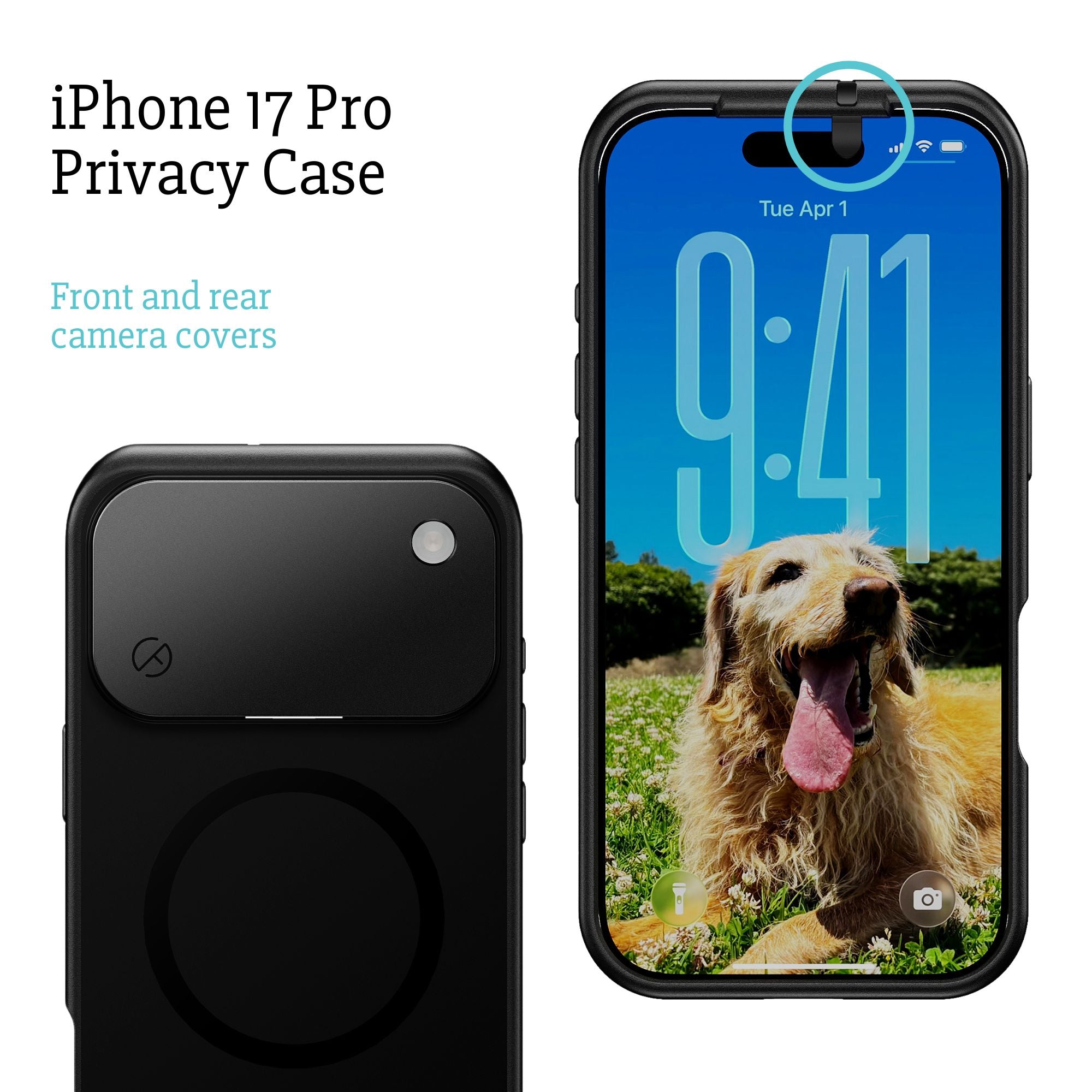
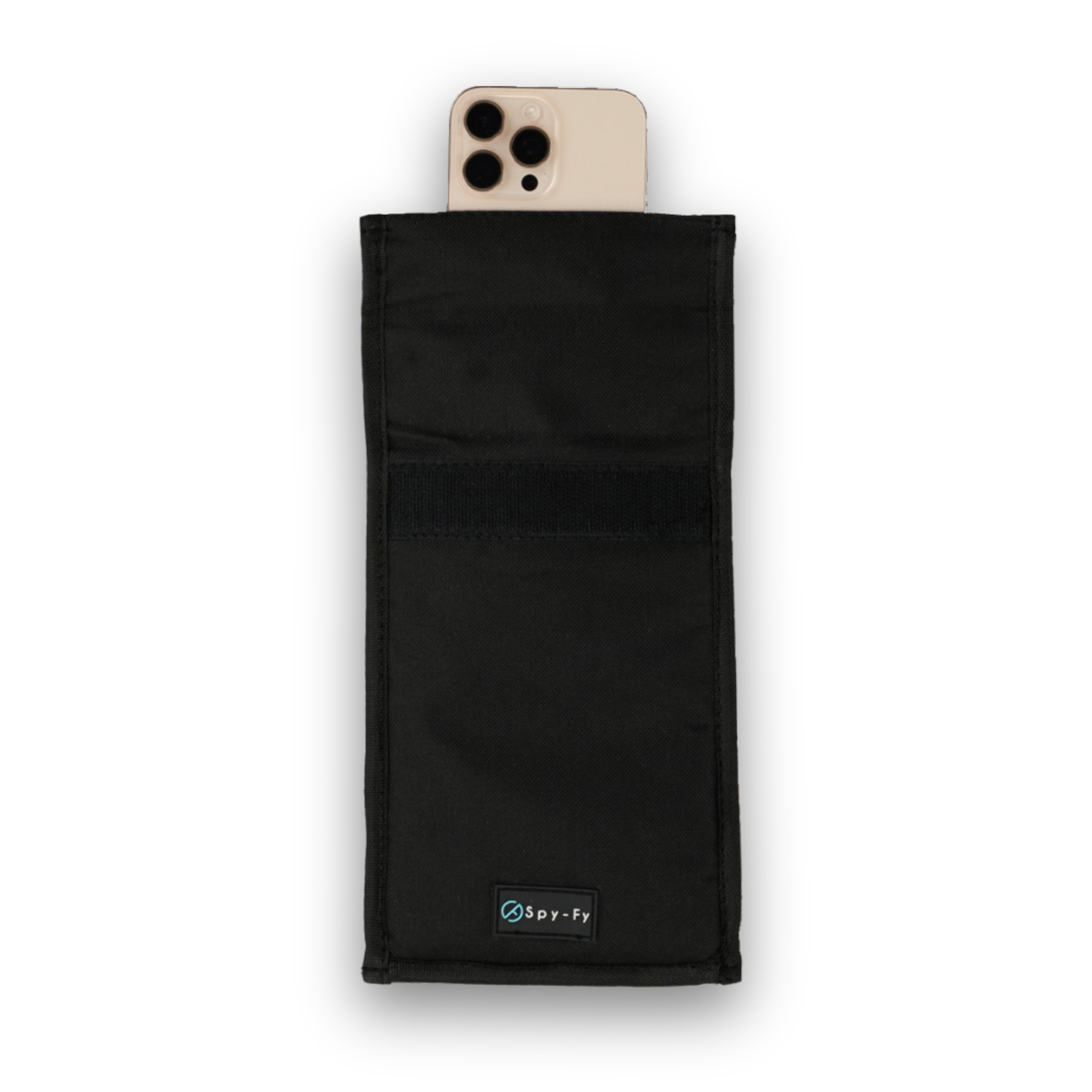
For broader context on iPhone hardware-level privacy, the Spy-Fy privacy case collection covers the physical side of the same conversation. Software logs tell you what already happened. Physical covers prevent things from happening in the first place.
What the App Privacy Report Actually Tracks
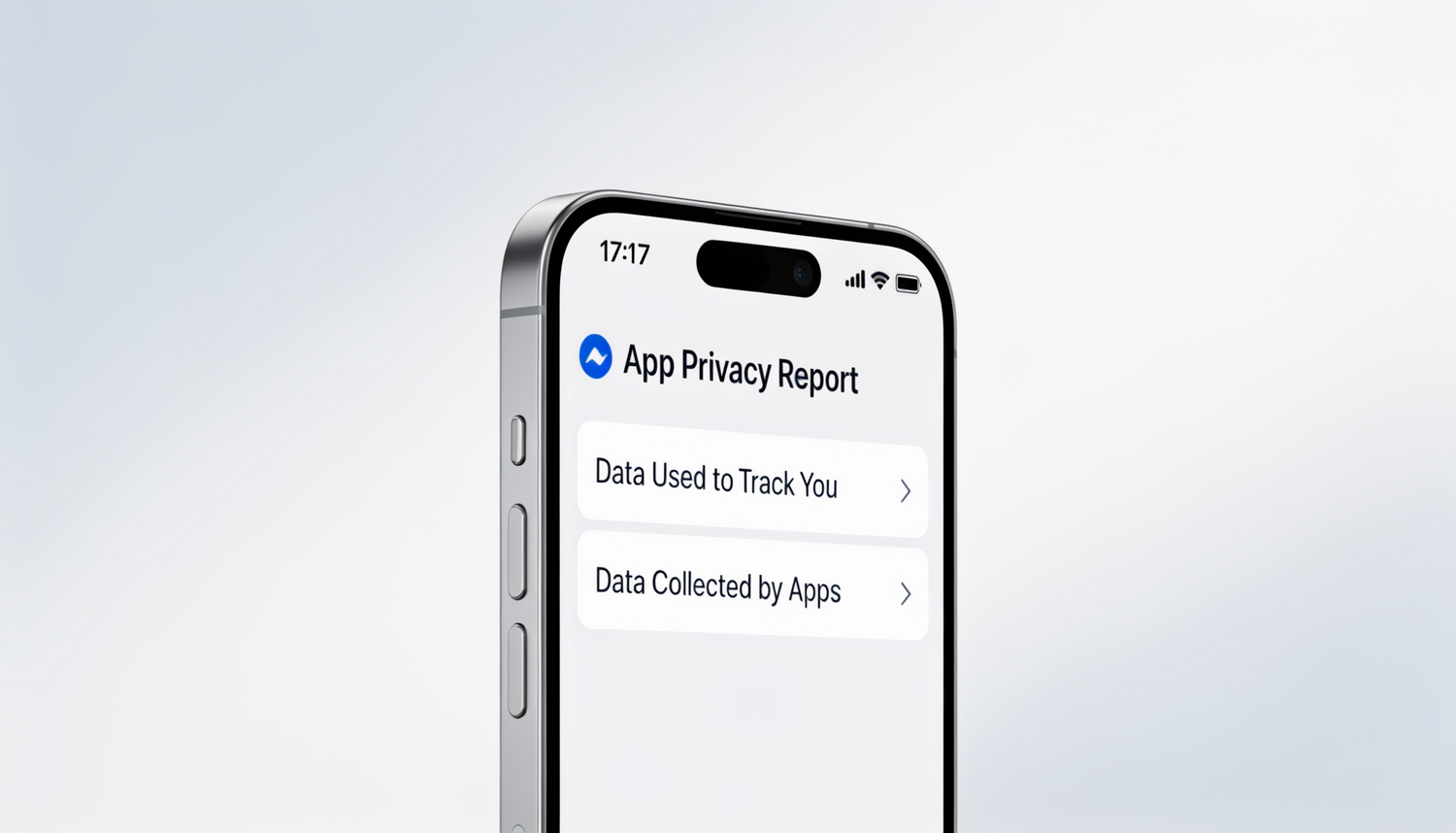
The App Privacy Report is a built-in iOS feature, available from iOS 15.2 onward, that records how apps use the permissions you have granted them. It is not spyware detection. It is an audit log of normal app behavior.
The report shows four categories of activity:
- Data & Sensor Access: Every time an app uses your location, camera, microphone, contacts, photos, media library, or screen recording in the past seven days.
- App Network Activity: Domains that each app contacted directly while you were using it.
- Website Network Activity: Domains contacted by websites you visited in Safari.
- Most Contacted Domains: A ranked list of which servers your apps and sites talked to the most.
That last category is where most people get nervous. Open the report after a week of normal use and you will see hundreds of contacted domains, many from companies you do not recognize: doubleclick.net, scorecardresearch.com, app-measurement.com, branch.io. These are analytics, advertising, and attribution services. Their presence is not evidence that you have been hacked. It is evidence that the modern app economy is built on tracking, which is exactly what the report is designed to expose.
How to Turn On App Privacy Report
The report is off by default. To enable it:
- Open Settings.
- Tap Privacy & Security.
- Scroll to the bottom and tap App Privacy Report.
- Tap Turn On App Privacy Report.
Once active, the report begins collecting data immediately. You will see meaningful results after about 24 hours of normal phone use. The data is stored locally on your device. Apple does not receive it, sync it to iCloud, or share it with any third party. If someone has physical access to your unlocked phone, they can open the report and see it. Nobody else can.
If the toggle is grayed out, check Screen Time restrictions under Settings > Screen Time > Content & Privacy Restrictions. Managed devices through MDM profiles may also block the feature. The Spy-Fy walkthrough on changing iPhone privacy settings covers related restrictions in more detail.
How to Read the App Privacy Report Without Panicking
Reading the report is a skill. Most entries are mundane. A few are worth a closer look. Here is how to triage what you see.
Data & Sensor Access
This is the section that matters most. If a flashlight app accessed your microphone, that is a red flag. If a meditation app accessed your contacts, that is a red flag. If your camera app accessed the camera, that is normal.
Tap any entry to see exactly when access occurred. Background access at 3 a.m. from an app you have not opened in a week deserves attention. Foreground access while you were actively using the app is almost always legitimate.
App Network Activity
Expect every app to contact multiple domains. A weather app legitimately needs forecast servers, ad networks (if free), and crash-reporting services. What you are looking for is unusual patterns: an offline note-taking app contacting dozens of third-party domains, or a children's app talking to advertising trackers it claims not to use.
Most Contacted Domains
If a single domain dominates the list, search its name. Domains owned by Google, Meta, and Apple are common and expected. Domains owned by ad-tech firms you have never heard of suggest the app monetizes through aggressive tracking. You then decide whether you want that app on your phone.
How to Clear the App Privacy Report
There is no dedicated clear button. The way you clear the report is by turning it off, which deletes all stored data, and then turning it back on to begin a fresh log.
- Go to Settings > Privacy & Security > App Privacy Report.
- Scroll to the bottom and tap Turn Off App Privacy Report.
- Confirm. All previous data is wiped from the device.
- To start fresh, tap Turn On App Privacy Report again.
Important context: clearing the report deletes the log of what happened. It does not stop apps from continuing to track you. The trackers are in the apps themselves. The report is a window into their behavior, not a barrier against it. If you want to actually reduce tracking, you need to revoke permissions, delete invasive apps, or use App Tracking Transparency to deny IDFA access. The Spy-Fy overview of iPhone privacy settings worth enabling covers those steps directly.
What Does the WiFi Privacy Warning Mean on iPhone
Many people who care about the App Privacy Report also see a yellow Privacy Warning under their WiFi network name. The two are unrelated, but they trigger the same anxiety, so it is worth clarifying.
The WiFi privacy warning almost always means one of two things:
- Private WiFi Address is disabled for that network. Since iOS 14, your iPhone uses a randomized MAC address per network to prevent tracking across locations. If you turned this off, iOS flags it as a privacy regression. To fix, tap the network name in Settings > WiFi > (i) and enable Private WiFi Address.
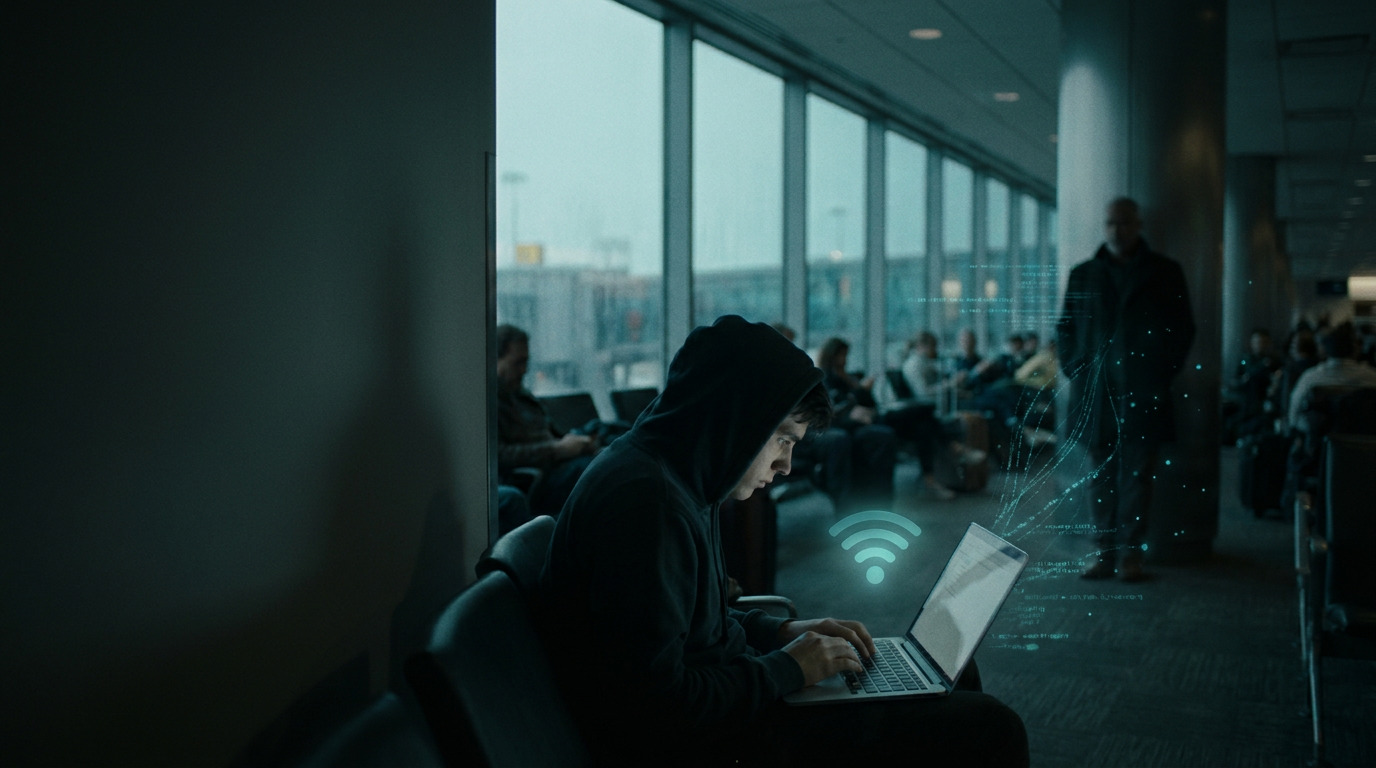
- The network is not using modern encryption. Open or WEP-secured networks trigger the warning because traffic on them can be intercepted. Common in hotels, airports, and older offices.
The warning is informational. It does not mean the network is malicious or that someone is actively surveilling you. It means iOS detected a configuration that is weaker than the current privacy standard. For executives and journalists who travel often, treat any WiFi privacy warning as a prompt to use cellular data or a trusted VPN instead.
What Clearing the Privacy Report Does Not Protect You From
This is the gap most articles on this topic do not address. Clearing the App Privacy Report is a cosmetic action. It hides past activity from anyone who picks up your phone. It does nothing to:
- Stop apps from continuing to access your sensors.
- Remove trackers embedded in installed apps.
- Detect spyware or stalkerware. Commercial spyware is designed specifically not to appear in this report.
- Prevent a malicious app from silently activating your camera or microphone if it has permission.
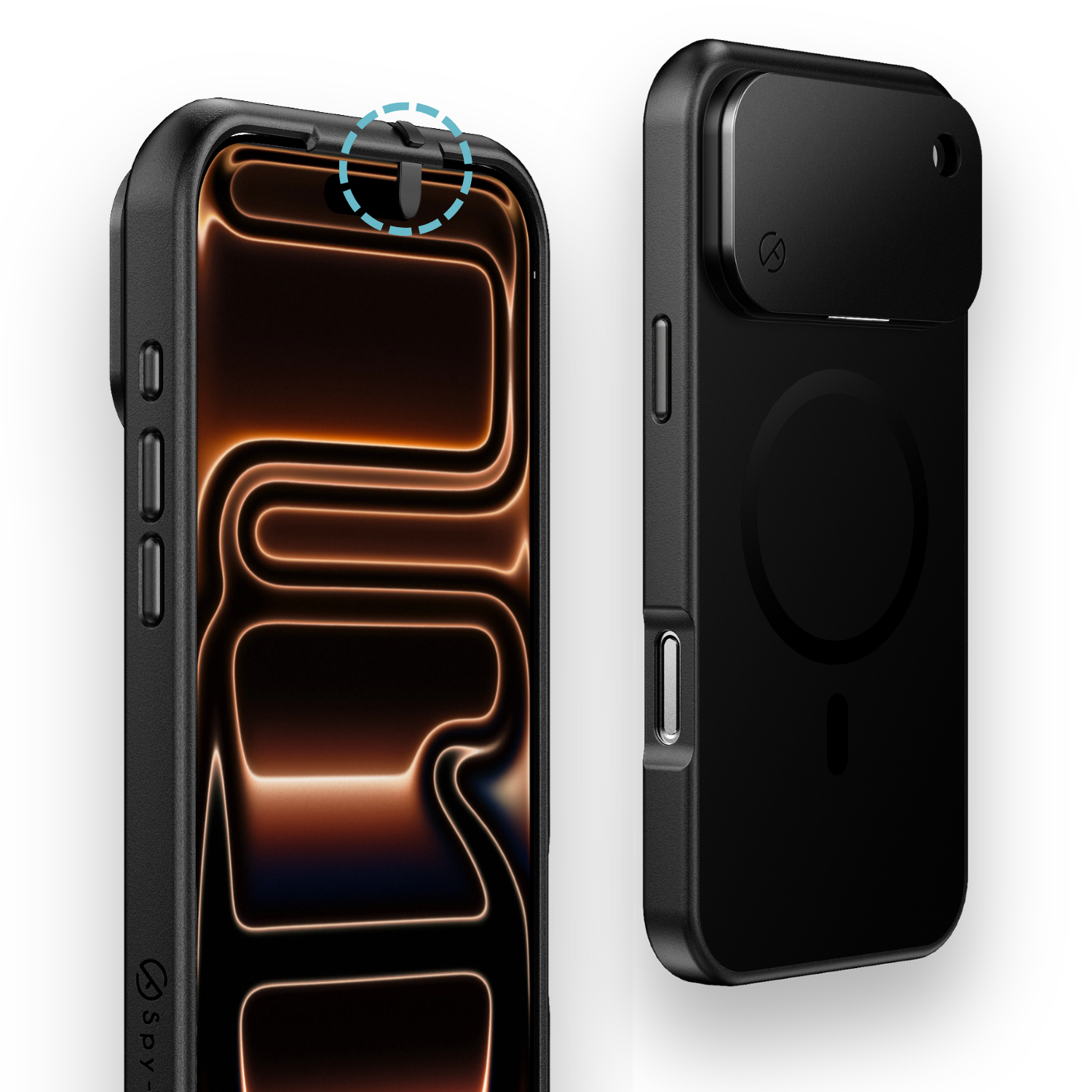
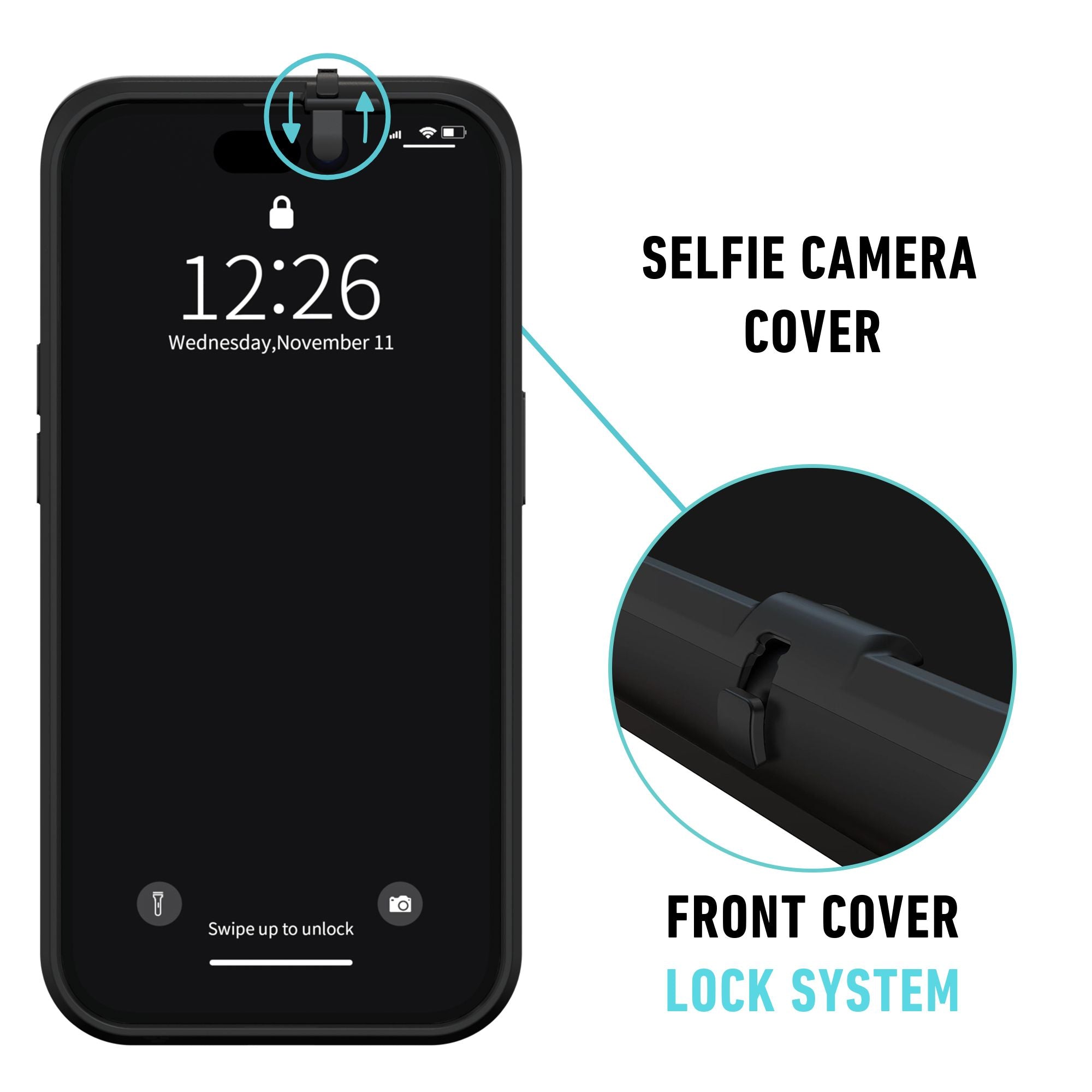
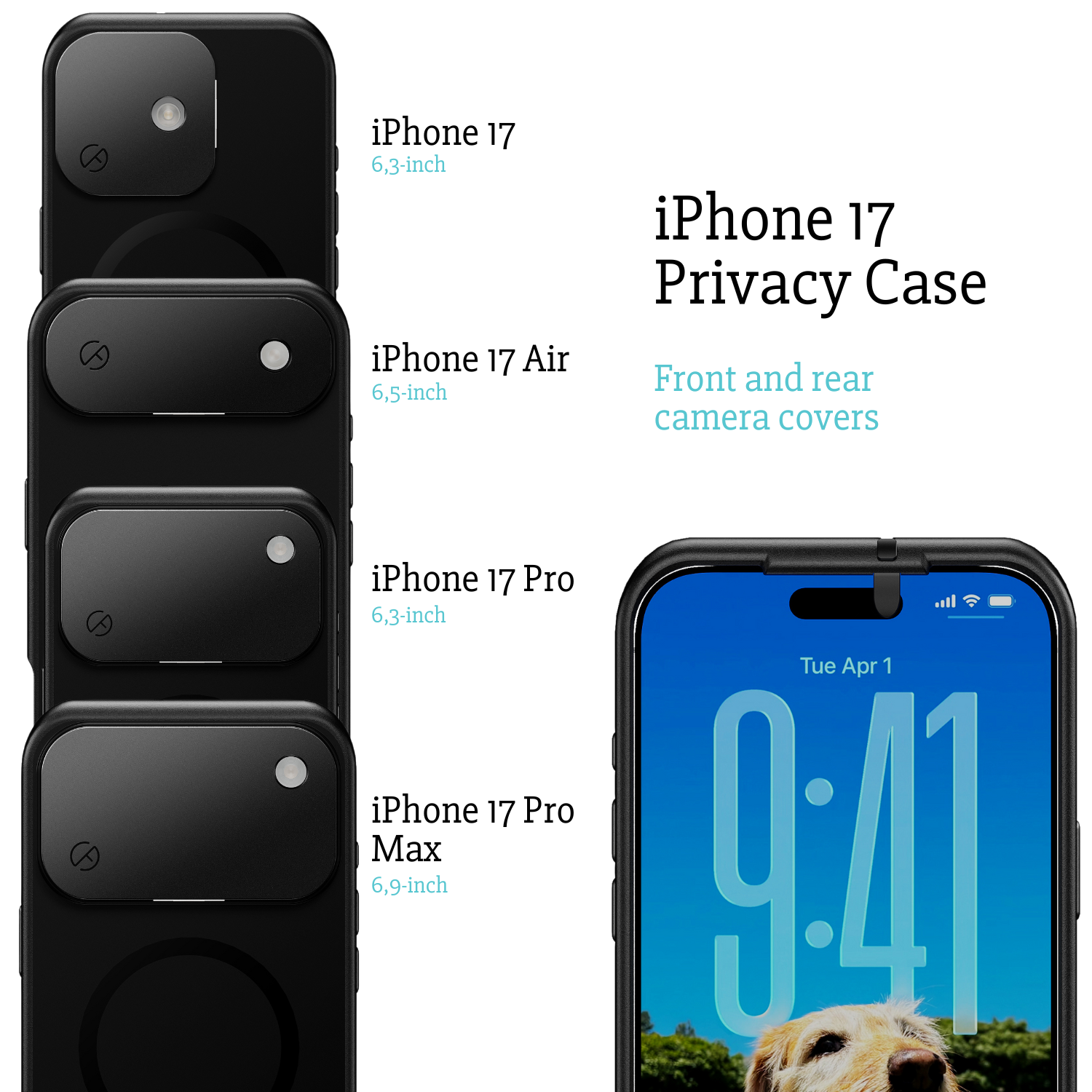
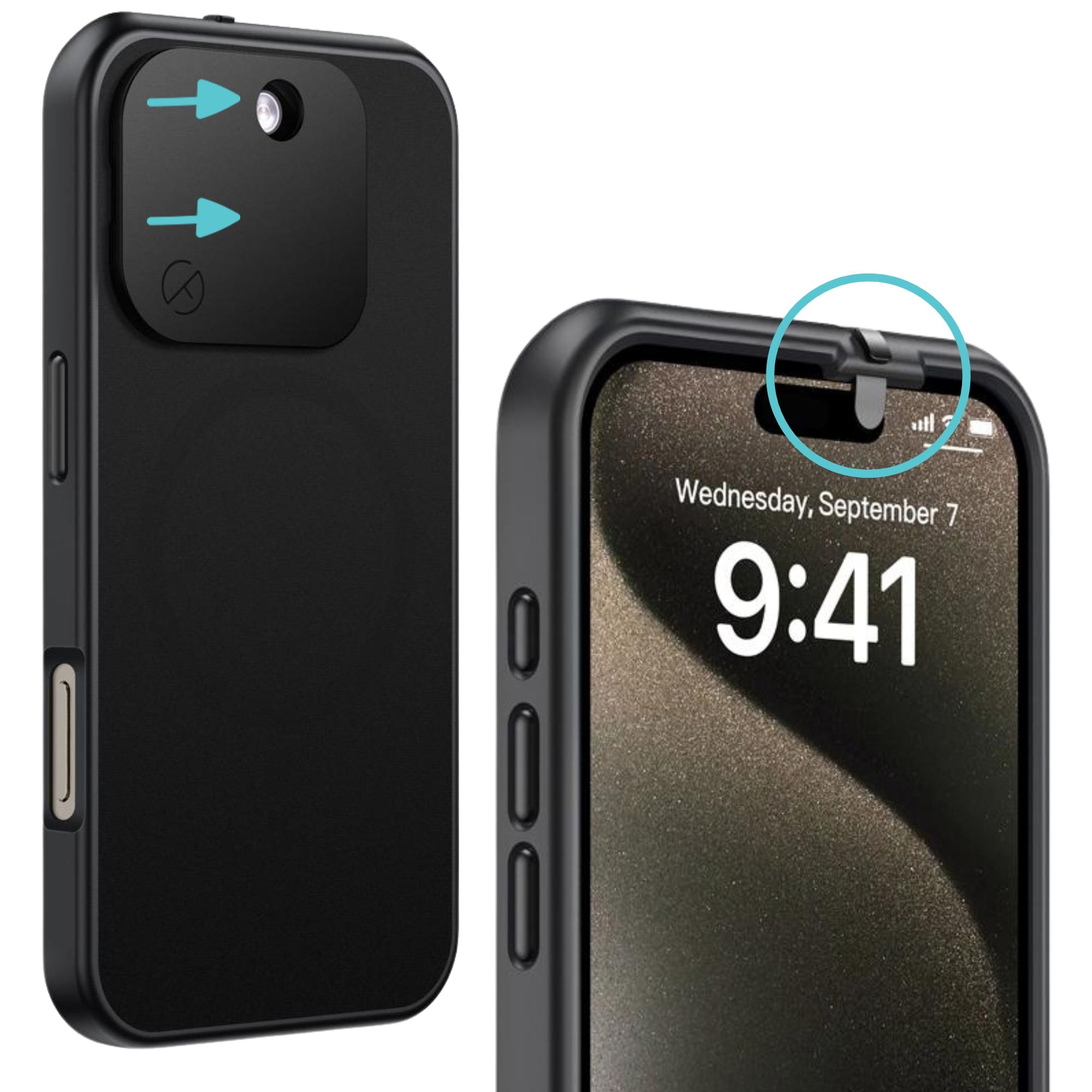
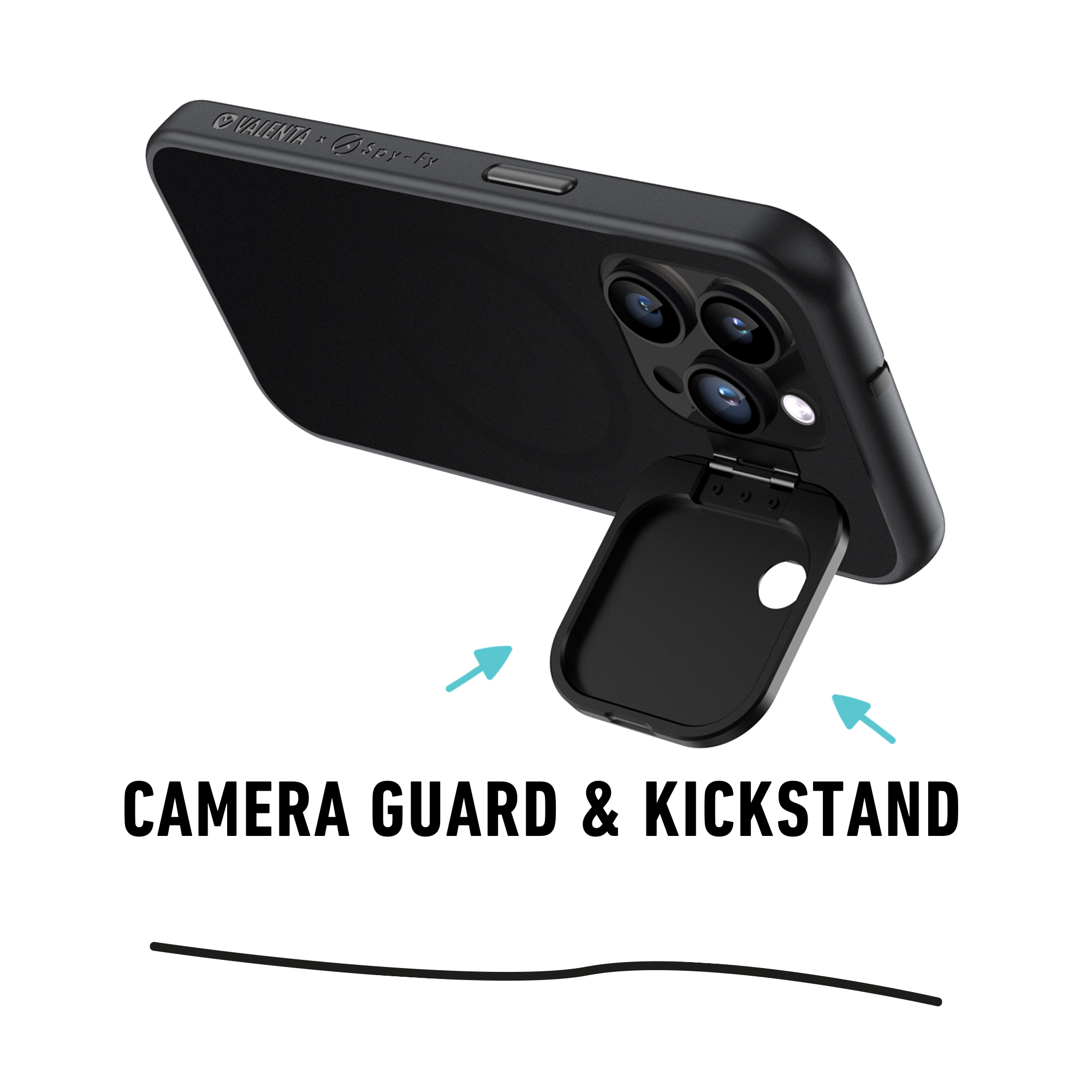
That last point matters. iOS shows a green dot when the camera is active and an orange dot when the microphone is active. These indicators are reliable for legitimate apps. They are less reliable against a sophisticated exploit that compromises iOS itself. For the small population of users who face that threat model, journalists protecting sources, lawyers handling sensitive litigation, executives in regulated industries, a physical camera cover is the only guarantee. A lens covered by an opaque slider cannot capture an image, regardless of what software does. That is the principle behind every Spy-Fy iPhone 17 privacy case: software permissions can be tricked, a piece of engineered plastic over the lens cannot.
When to Take Action Based on the Report
Use the report as a periodic audit, not a daily worry. A monthly review takes about ten minutes and is enough for most people. Look for:
- Apps accessing sensors they have no business accessing.
- Background access at odd hours from apps you rarely use.
- A single app contacting an unusually high number of tracker domains compared to peers.
- Apps you forgot you installed showing up at all. Delete them.
After your review, revoke permissions in Settings > Privacy & Security for any app where the data access does not match the app's purpose. Then clear the report and start a new log. The next month's data will tell you whether your changes worked.
The Bigger Picture for Privacy-Aware Users
The App Privacy Report is one of the better tools Apple has shipped for user transparency. It gives you visibility into a layer of phone behavior that was previously invisible. Used well, it changes which apps you trust and which permissions you grant. Used poorly, it becomes a source of vague anxiety that does not translate into action.
The honest summary: software-level privacy controls help, but they all depend on iOS and the apps behaving as documented. For the threats that matter most, an attacker with physical access, a compromised app with camera permission, a zero-day exploit, hardware-level controls remain the only certainty. That is why a comprehensive privacy posture combines both. Audit your software with the report. Cover your hardware with something physical.
To see the case options for your specific iPhone model, including the 17, 17 Pro, 17 Pro Max, and 17 Air, browse the full Spy-Fy privacy case collection. Each case includes a sliding front cover that preserves Face ID when open and a flip rear cover that keeps the flashlight usable. Designed in the Netherlands, built for professionals who treat privacy as a working discipline, not a passing concern.